
The game screen
Every game looks the same. Find your stars at the top. Find the question in the big box.
Every loopy game has the same parts in the same places. Learn them once, and every game is easy to find your way in.
The top bar
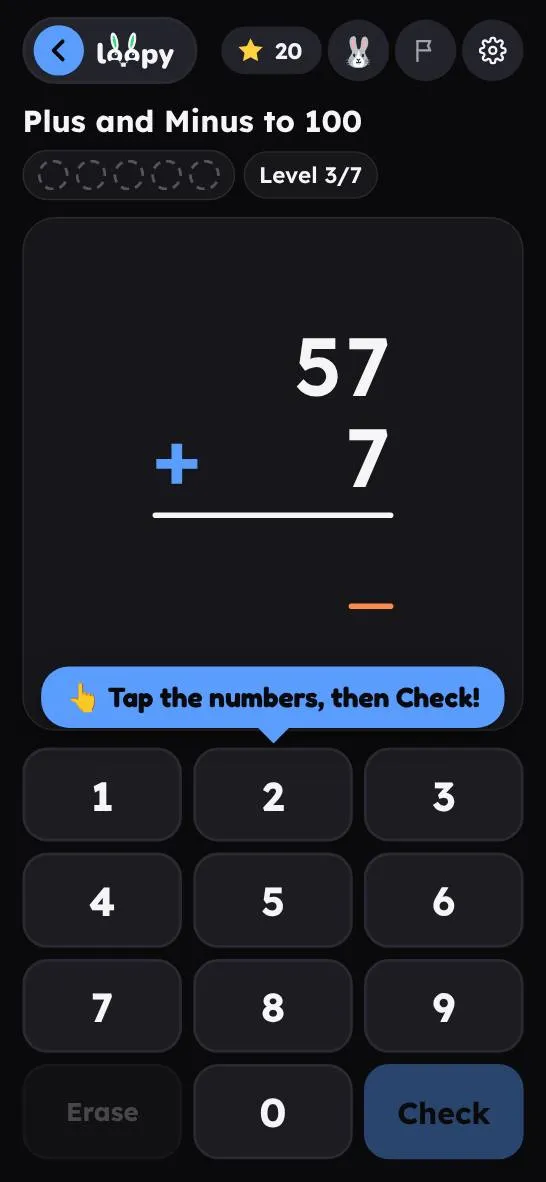
Section titled “The top bar”From left to right:
- ← loopy: the big back button. It goes back to all games.
- Star counter: a yellow star and the number of stars earned. After each right answer, a small “+1” star flies up to it.
- 🚩 Flag: Report a problem. Tap it when a question or answer is wrong. See Report a problem.
- The child playing: their picture, and their name when they have one. With one child, tap it to change the name or picture. With two or more it has a small ▾: tap it to open Who is playing? and switch, without going back to the home page.
- ⚙ Settings: the game’s own choices, plus age, language, colors and sound. See Game settings.
On a small phone some parts get smaller. Settings may show only its gear, and the flag may hide. Report a problem is always in ⚙ Settings too.
The score row
Section titled “The score row”Under the game’s name:
- Last 5: five dots for the last 5 answers. Green is right, red is wrong. Empty dots wait for answers.
- Level pill: like “Level 3 of 7” (“Level 3/7” on a small phone). See Levels.
- Streak: 🔥 and the number of right answers in a row.
The problem card
Section titled “The problem card”The big card in the middle shows the question. It may have a picture, a clock, a map or a flag. The card is as tall as the question needs. A short question gets a small card, and the answer buttons or keys under it grow into the room. A sum, a grid or a map that can grow fills its card instead.
- Read aloud speaker: when Read aloud is on in ⚙ Settings, a round speaker button sits in a corner of the card. Tap it to hear the question.
- The first-time hint: the first time a child opens a game, a blue bubble says what to tap, like “Tap the right answer!”. It sits where it hides nothing: above the answers, in an empty part of the card, or in a row of its own. It fades by itself after a few seconds, or at the first tap.
- The answer line: after an answer, the card says Correct! or Not quite., and one short line on why. The card’s edge turns green or red.
The answer buttons
Section titled “The answer buttons”- Tap an answer in games with choices.
- Number pad or letters: tap to type, Erase takes the last one back, and Check checks the answer.
- Next: after an answer, tap Next for a new problem. In many games a small Skip button shows before an answer, to pass on a problem.
On a keyboard, Tab moves between buttons, Enter picks one and number keys type. Escape closes Settings.