
Language and look
Pick your colors. Play in English or German!
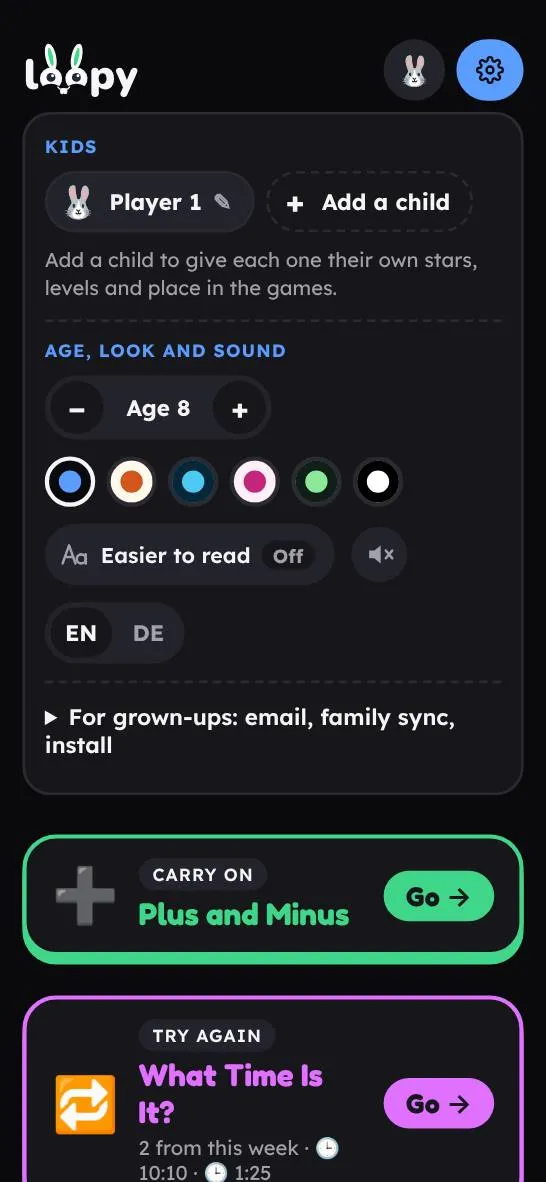
All of this is in ⚙ Settings, on the home page and in every game. In a game it is under Age, look and sound.
Language
Section titled “Language”Tap EN for English or DE for German. The page opens again in that language. loopy remembers the choice on this device.
The games use the language too. Word games show English or German words, and Read aloud speaks in that language. Sums use the signs your child’s school uses: × and ÷ in English, · and : in German, so 3 · 4 and 12 : 3.
Color themes
Section titled “Color themes”Tap a round color button to change the look. There are seven:
- Black: the default. Dark, with bright colors.
- Sunny: light and warm.
- Ocean: dark blue.
- Candy: light pink.
- Forest: dark green.
- Clean: light grey and white, with one blue. Calm, for older kids and grown-ups.
- High contrast: black and white, with bright colors and clear white edges on every button.
The theme works on every page and is kept on this device.
Easier to read
Section titled “Easier to read”Turn on Easier to read to switch every text to Atkinson Hyperlegible. It is a font made so letters are easy to tell apart, like b and d, or I, l and 1. It can help children who are learning to read, or who find some letters hard to tell apart.
Game tiles
Section titled “Game tiles”On the home page, ⚙ Settings has a Game tiles row. It picks how the game buttons look. Tap one of the five small squares:
- Chunky: the start. A card with a coloured edge and a solid shadow.
- Sticker: the whole tile in colour, the name on a light band at the bottom.
- Soft: a calm card with a soft shadow and the picture on a round disc.
- List: one game per row, with big names. Two rows side by side on a tablet.
- Icons: a round colour disc with the picture and the name under it, like apps on a phone.
The choice belongs to the child playing and travels with their stars code. Today’s 10, Carry on and Try again always look the same.
loopy plays short happy sounds for right answers, streaks and badges. Tap the speaker button to turn them off or on.
Read aloud
Section titled “Read aloud”Many games can read the question out loud. Turn on Read aloud in the game’s ⚙ Settings. A speaker button then shows next to the question. It uses the device’s own voice, so nothing is downloaded. It is on by itself for ages 5 to 7. If the device has no voice, the setting does not show.
See Game settings and Home page settings.