
Settings on the home page
Tap ⚙ Settings on the home page. Here you can add a child, set the age, pick colors and sound, leave an email, and turn on Family sync.
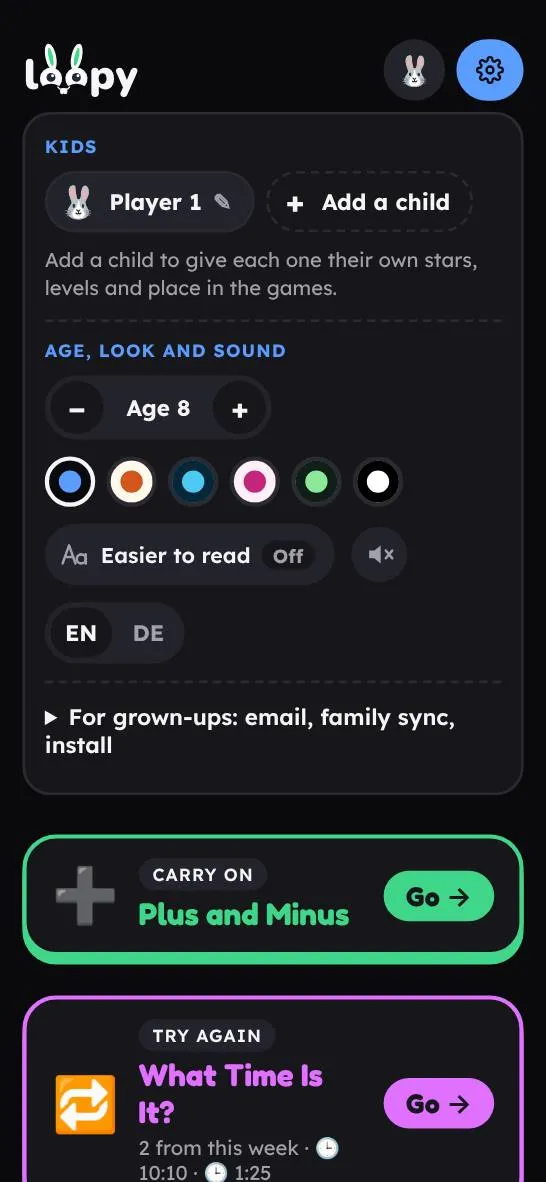
The ⚙ Settings button sits under the loopy name. On a phone it is in the top right corner, next to the child playing. Tap it to open the box. Tap it again, or press Escape, to close it. The box has two parts for everyone, Kids and Age, look and sound, and then one line, For grown-ups: email, family sync, install. Tap that line to open the three grown-up parts: Grown-ups: stay in touch, Family sync and Use like an app. They are folded away so a child who opens the box for the colors sees a short list.
Each child has their own stars, levels and place in the games. A new device starts with one child and no name.
To add a child:
- Tap + Add a child.
- Type a name or a nickname. It can be up to 12 letters.
- Pick a picture, like 🐰 or 🦊.
- Set their age with − and +.
- Tap Save.
Tap a child’s row (with ✎) to change the name or picture. With two or more children, that box also has Remove. Tap it twice to remove the child and all their stars on this device. You can have up to 6 children. See Kids and ages.
Age, look and sound
Section titled “Age, look and sound”- Age: tap − or + to pick an age from 5 to 16. The games start at a level that fits. The age belongs to the child playing, and it goes up by itself once a year.
- Color theme: seven round buttons: Black (the start), Sunny, Ocean, Candy, Forest, Clean and High contrast. High contrast uses black, white and bright colors with clear white edges.
- Easier to read: turns on a font with letters that are easy to tell apart, like b and d. Tap it again to turn it off.
- Game tiles: five small squares pick how the game buttons look: Chunky (the start), Sticker, Soft, List or Icons. The choice belongs to the child playing.
- Sound: the speaker button turns the short sounds on or off.
- Language: tap EN for English or DE for German. The page loads again in that language.
Colors, Easier to read, sound and language are the same for everyone on this device. See Language and look.
Grown-ups: stay in touch
Section titled “Grown-ups: stay in touch”For grown-ups who want to hear about new games, a few times a year. It is the only place in loopy that asks for anything about you.
- Type your email in Your email.
- Tick I am a grown-up and I agree to the privacy note. The words “privacy note” are a link to the privacy note.
- Tap Save.
Nothing is sent until you tap Save. loopy then keeps the email, your language and the time on its own server in the EU. Nothing else goes with it unless you tick the box below: nothing about your child, no stars, no names. The box then shows “Saved” with your email and a Remove button. Remove deletes it from the server and from this device. After 2 years it is deleted by itself.
Also link my email to our Family sync. This second tick box shows only while Family sync is on. Tick it before Save and your family id goes along with the email. That is the random number your locked family copy is filed under. It lets loopy’s maker see which family copy goes with your email, for example to help when sync goes wrong. The copy stays locked, so the server still cannot read stars or names. The box then says “Linked to your Family sync”. To unlink, tap Remove and save the email again without the tick. That works only on the device that saved the email first. From any other device in the family, Turn off everywhere under Family sync drops the link too, but it also turns sync off on every device.
If you type something that is not an email, loopy says “That does not look like an email.” If you forgot the tick, it says “Please tick the box first.” Without internet, it says “loopy can’t reach the sync server.” Then try again later.
The same privacy note is linked at the bottom of the home page, under the Grown-ups, Help and Guide buttons.
Family sync
Section titled “Family sync”Family sync keeps the stars the same on all your family’s devices, by themselves. It is off until a grown-up turns it on. What this part shows depends on whether it is on.
When it is off, there are two buttons:
- Turn on starts a new family. loopy makes a family code and shows it.
- Join with a code opens a box for the code from your other device. Type it and tap Join.
When it is on, it shows:
- “On. Your family code:” and the code, in big letters.
- A QR code. On the other device, scan it with the camera to join.
- Share the link: opens the phone’s share sheet with the family link, or copies it, so you can send it to the other device.
- Sync now: syncs right away.
- Turn off: stops sync on this device only. The other devices go on.
- Turn off everywhere: tap it twice. It deletes the family copy on the server, so every device stops syncing. The stars on each device stay.
- A line under the buttons that says what is going on: “Last sync at 16:20”, “Syncing…” or “Waiting for the internet”.
Your family code
Section titled “Your family code”The family code is the key to your family’s stars. It looks like 7K2M-QX9D-4HPT-W3RA: 16 letters and numbers in 4 groups.
- See it again: open ⚙ Settings on any device where Family sync is on. It is under Family sync, with its QR code.
- Type it: small or capital letters both work, and you can leave out the dashes. The code never has the letters O, I, L or U. If you type an O, loopy reads a 0. An I or an L counts as a 1.
- Keep it private, like a house key. Anyone with the code can join your family and see the stars.
- It stays on the device. The code is not in a stars code, a backup file or the QR code under My stars. Each device joins by itself, with the code or the Family sync QR code.
- Lost it? If one device still has sync on, read the code there. If no device has it, tap Turn on again. That makes a new family with a new code. Then join the other devices with the new code. The old family copy is deleted on the server after 400 days without a save.
For what syncs, when it syncs and what the messages mean, see Family sync.
Use like an app
Section titled “Use like an app”The last part has one button: Add loopy to the home screen. On a computer it says Install loopy on this computer. It opens the browser’s own install box, or shows the steps for your device. Then loopy opens full screen and works offline. This part hides when loopy already runs from the home screen. See Add to the home screen.
Where each setting is kept
Section titled “Where each setting is kept”| Setting | Who it is for | Goes to the other family devices? |
|---|---|---|
| Name and picture of a child | That child | Yes |
| Stars, badges, streaks, answers for the grown-ups page | That child | Yes. The bigger number wins, nothing is taken away |
| Age, levels, game choices, Read aloud, last game, game tiles | That child | Only to a device that has none for that child yet |
| Color theme, Easier to read, sound, language | Everyone on this device | Only to a device that has not picked any yet |
| Your email (Stay in touch) | You, on loopy’s server | No. Each device saves its own email. The family id you can link to it is the one all your devices share |
| The family code | This device | No. Each device joins by itself |
| Add to the home screen | This device | No |
Everything except the email, and the family id if you linked it, stays in this browser on this device. See Where stars are saved.
Not in this box
Section titled “Not in this box”Read aloud, the level and Reset score are in each game’s own Settings. See Settings in a game.